Privacy and security
How to password protect a photo album you share online
Some albums are not for the whole internet. Here is how to password protect a shared photo and video album so only the people you choose can open it.
Daniel Okafor
Engineer at Galrivo··2 min read
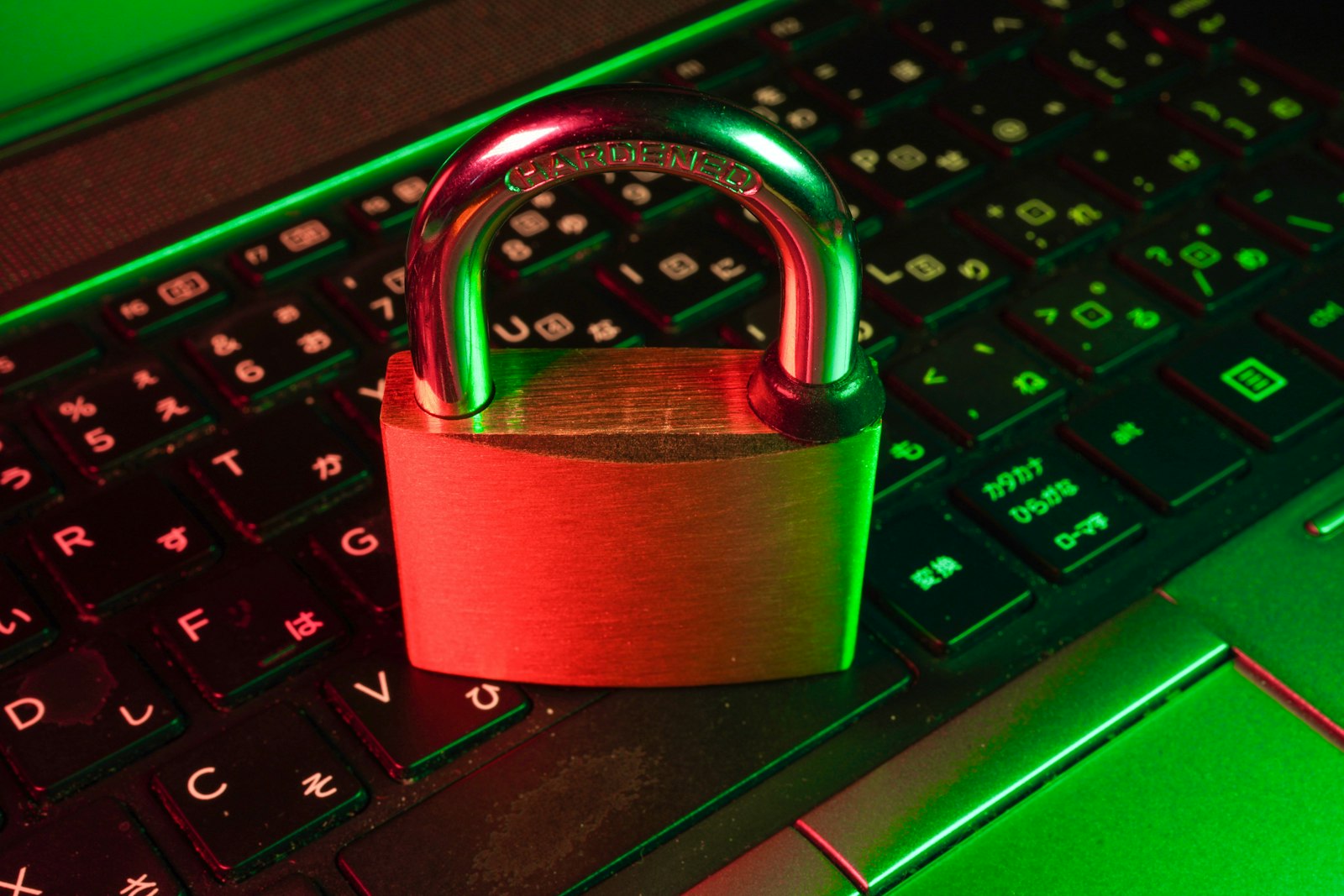
A link is convenient precisely because anyone can open it. That is also the problem. The moment you share an album of family photos, baby pictures, or anything personal, a plain link means whoever ends up with it can look. A password turns a public link into a private one.
Google Drive cannot do this on its own
This surprises people: a normal Google Drive share link has no password option. Access is all or nothing. Either the link is restricted to named accounts, or it is open to anyone who has it. Google Workspace has a "visitor" feature with a one-time PIN by email, but it is built for documents and is far too clunky for sharing a holiday album with friends and family.
A link is forwardable
How to add a password the easy way
The simplest route is to share your Drive media through a gallery that supports passwords. With Galrivo it is a single toggle:
Build the gallery
Pick the photos and videos from your Drive. Nothing is uploaded; the gallery just points at your files.
make a gallery
Pick your media.






Turn on a password
Flip the password switch and type one. Pick something memorable but not obvious.
Share the link and password separately
Send the link one way (a text) and the password another (a quick call). Copy the link with one tap.
Public link
Now anyone opening the link meets a simple unlock screen first. Get the password right, you are in. Get it wrong, you see nothing. No Google account needed at any point.
Choosing a password people will actually use
- Make it easy to say out loud. Family members will be typing it on a phone.
- Avoid your usual passwords. This one gets shared, so it should be unique to the album.
- A short memorable phrase beats a random string when you need to pass it around.
- Send it through a different channel than the link, so one leaked message does not give away both.
Pair it with an end date
Key takeaways
- Plain Drive links have no password, access is all or nothing.
- A password makes a forwarded link useless without the secret.
- Galrivo adds a password with one toggle, no account needed for viewers.
- Send the link and the password through different channels.
Frequently asked questions
Share your media the easy way
Turn the photos and videos in your Google Drive into one clean link, with a password and an end date if you want. Free to start, no app for the people you send it to.
Make my first galleryDaniel Okafor
Engineer at Galrivo
Daniel builds the parts of Galrivo that keep your media private. He writes about how sharing actually works under the hood, in language that skips the jargon.