Google Drive sharing
How to share iPhone photos that are stored in Google Drive
Keep your iPhone photos and videos in Google Drive but want to share them without the usual iCloud friction? Here is the clean way to share Drive media from an iPhone.
Hannah Brooks
UX writer at Galrivo··3 min read
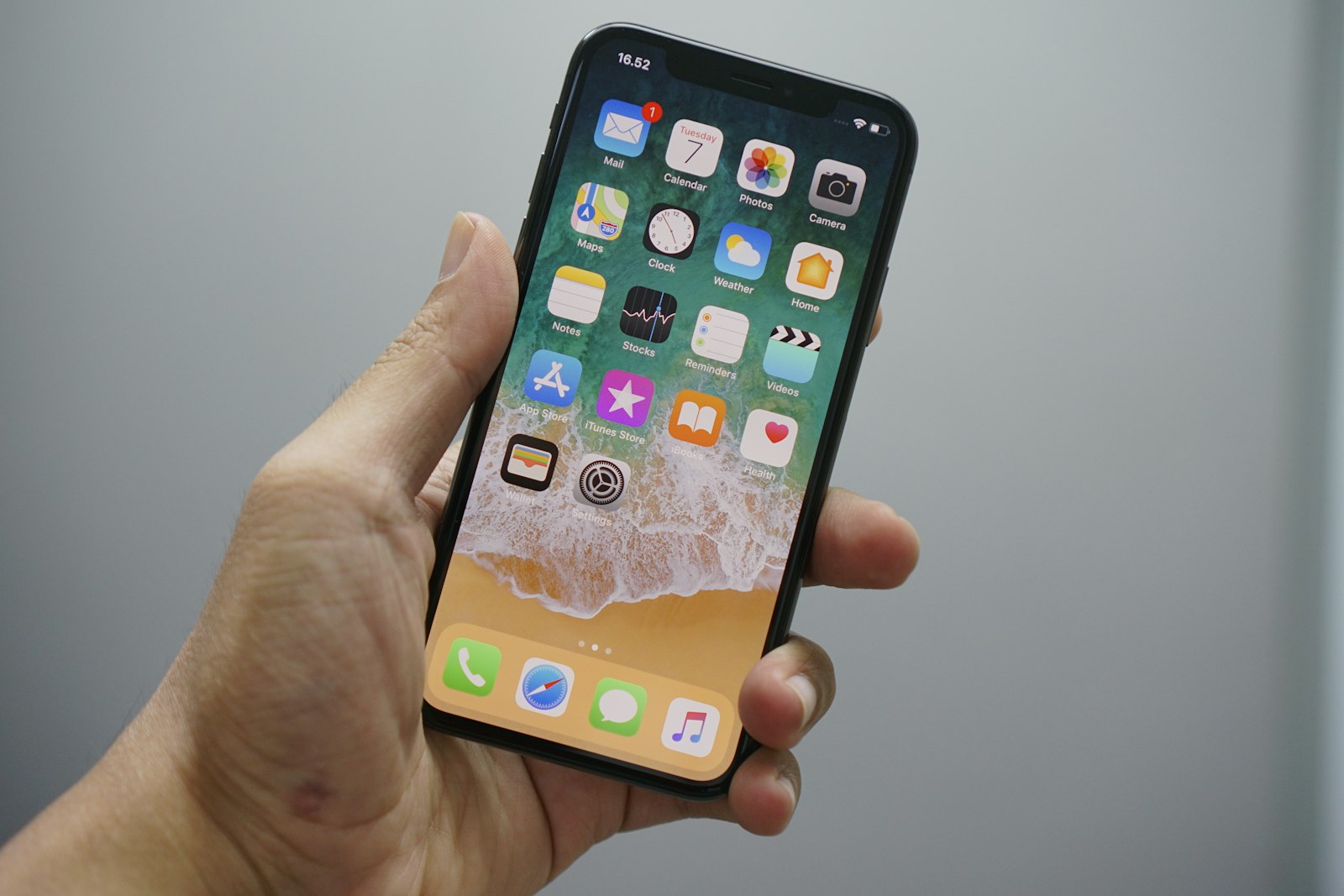
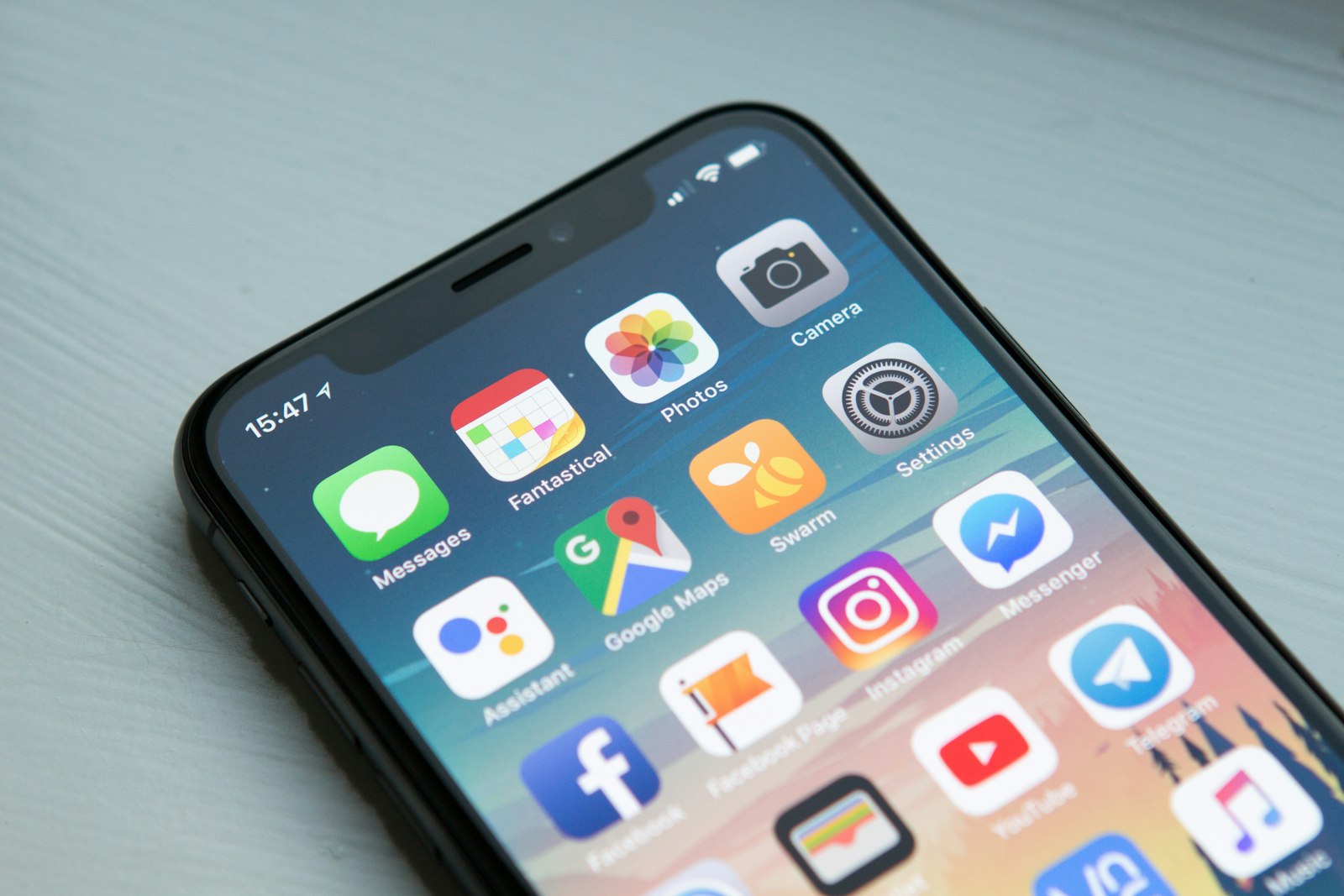
Plenty of iPhone owners keep their photos and videos in Google Drive rather than iCloud. Maybe you ran out of the free iCloud storage, maybe you split life across an iPhone and an Android tablet, maybe you just trust one place for everything. Whatever the reason, sharing from Drive on an iPhone has a couple of quirks worth knowing.
Why people share from Drive instead of iCloud
- iCloud shared albums work beautifully, but only really shine when the other person also has an Apple device.
- If your originals already live in Drive, sharing through iCloud means moving them around first.
- Drive is the same on an iPhone, an Android phone, and a laptop, so the people you share with are never left out.
Sharing with the Drive app on iPhone
The Google Drive app on iOS can share a folder, though the controls are a little buried compared with the desktop:
Open the Drive app and find the folder
Tap the three dots next to the folder you want to share.
Tap Manage access
Change General access to "Anyone with the link" so people without a Google account can open it.
Share “iPhone photos”
General access
Anyone on the internet with the link can view
Copy the link
Tap Copy link, then share it through Messages, WhatsApp, or wherever you like.
Watch the share sheet

The nicer way: a gallery link from your iPhone
If you want the people you share with to see an actual gallery instead of Drive's file list, open Galrivo in your iPhone browser and make a gallery there. You pick the photos and videos from your Drive, get one link, and send it from the same phone.
When your friend taps it, they get a full-screen, swipeable gallery that works the same on their iPhone, their Android, or their laptop. No app, no account, and your photos arrive at full quality, not the squished version a chat app would create.
A note for Safari users
Key takeaways
- Keeping iPhone media in Drive makes sharing work for non-Apple friends too.
- In the Drive app, set access to "Anyone with the link" before copying it.
- Avoid the share sheet for big videos, it can send a copy instead of a link.
- A gallery link gives the cleanest result and keeps full quality on any device.
Frequently asked questions
Share your media the easy way
Turn the photos and videos in your Google Drive into one clean link, with a password and an end date if you want. Free to start, no app for the people you send it to.
Make my first galleryHannah Brooks
UX writer at Galrivo
Hannah writes the words inside Galrivo and the step-by-step guides for getting things done on your phone, whatever device you carry.